Rules engine – Mapping use cases
This page groups common mapping scenarios.
TIP
If you are looking for type conversions and formula-oriented examples, also see: Advanced mappings.
Map a Text or Number source column to a Select or Classification column
This is the same case as before. The problem is that Text or Number values cannot be predictable (imagine a Text value Green, which can also be written: green, GREEN, 104 = the color code...), therefore the bypass is to create a rule for each input value.
Map a Classification column depending on multiple source columns
In this example the start configuration is like below:
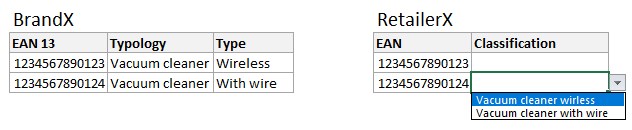
The target Products table of the retailer contains two fields :
- EAN the EAN 13 of the product
- Classification the classification used on the website, it can take two values:
- Vacuum cleaner wireless
- Vacuum cleaner with wire
The source Products table of the supplier contains these fields:
- EAN 13 the EAN 13 of the product
- Typology the typology of the product, it can take two values:
- Vacuum cleaner
- Coffee machine
- Type is a field specific to the category Vacuum cleaner and can take two values:
- Wireless
- With wire
What BrandX wants to express is:
In my Products table, if typology is vacuum cleaner and type is wireless then the classification must be set to vacuum cleaner wireless on RetailerX, else if typology is vacuum cleaner and type is with wire then the classification must be set to vacuum cleaner with wire on RetailerX.
For this like in the examples above we will create multiple rules on the same field.
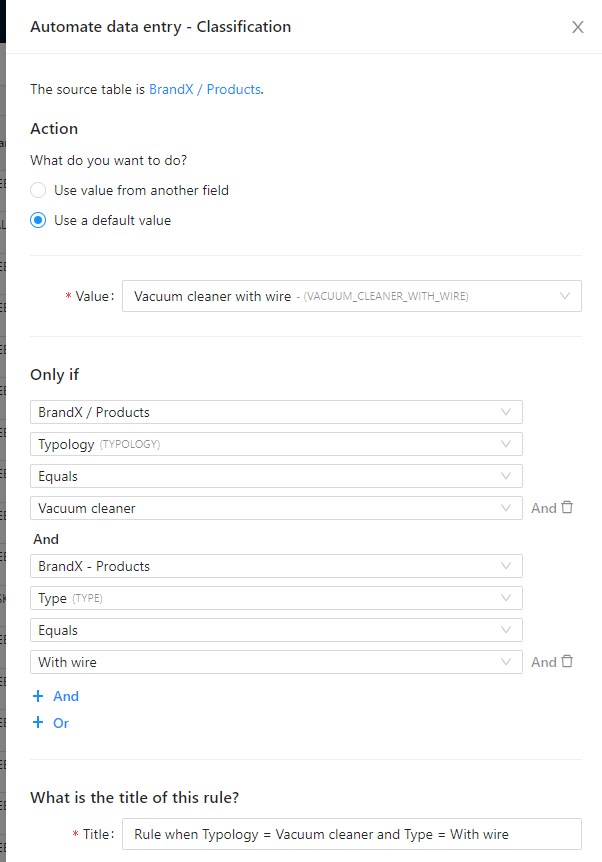
First create a rule for the first case like this:
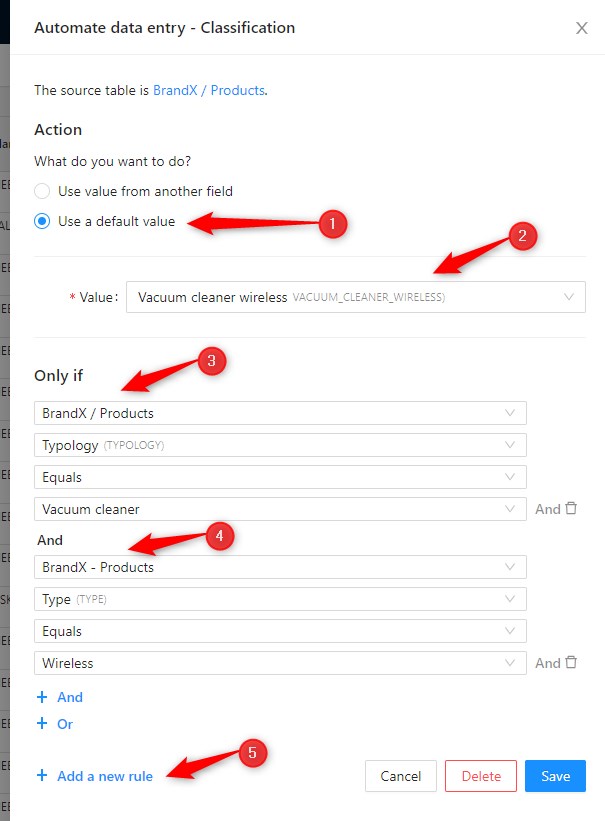
- In action click on Use a default value
- Select the value
- In Only if add a condition on the Typology field
- Then add a condition on the Type field
- Then click on + Add new rule and create the second rule and give this name:
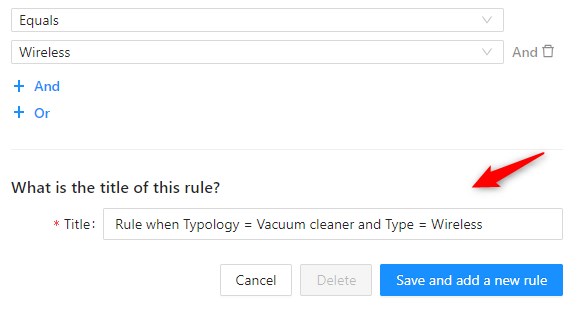
Then click on Save and add a new rule button and create this configuration:
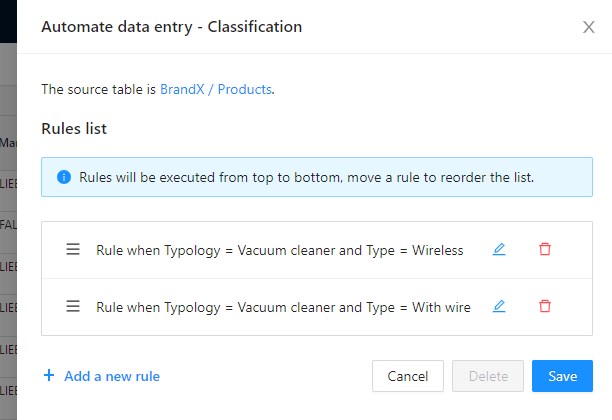
Finally you should have this configuration: