Use Product-Live as a supplier
Create a product
To create products you have two possibilities, both in the Actions menu:
- Use the item creation job
- Use the Quick Import
Item creation job
From the Actions menu you can see an item creation job.
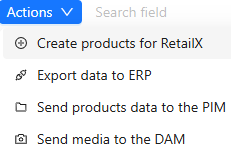
- Click on Create products
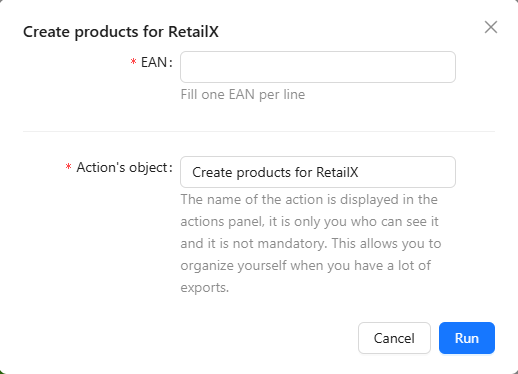
- Complete the EAN list that you wish to create. You can copy/paste it directly from an Excel file
- Click on Run
TIP
The EANs must be added without including any spaces.
The EANs cannot be subsequently modified, they must include 13 numbers as well as a control key, all valid
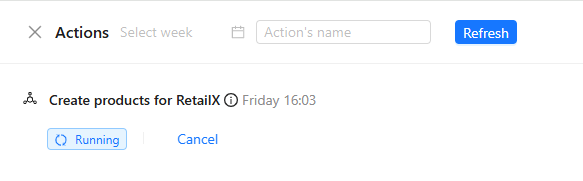
A window will open and indicate you the level of progression of the job.
TIP
If you wish to, you can let it run itself in the background, by selecting Continue in background. If so you may check the job progress by selecting the button in the top right corner.

Quick Import
If you have products to create from an Excel file, the Quick Import is the best choice. It enables you to easily import your products with their data in one action. See details in the dedicated page.
Publish a product to your retailer
Check product data quality
The objectives of Product-Live are to accelerate the time-to-market and to improve the quality of your data for the final customer. Since there is a direct link between the information completed on the platform and the information available on the retailer’s channels (website, shops...), it is important to complete as much information as you can. It will impact the visibility of your product
To complete as much product information as possible, you have to filter on the product's category (which can also be named typology or hierarchy) to access to the attributes specific to that category, such as the screen size of a smartphone, which does not exist for a fridge.
See how to filter on product's category here.
You can see which items are ready to publish according to their conformity status:
| Status | Description |
|---|---|
| Your product matches all compliance rules, you can send the product to your retailer. | |
| Your product matches only mandatory compliance rules. Some fields require your attention. It is highly recommended to fill them in if you want to sell your products in an optimal way. | |
| Your product does not match all the mandatory compliance rules. You must fill the indicated fields in order to send the product to your retailer. |
Draft publication
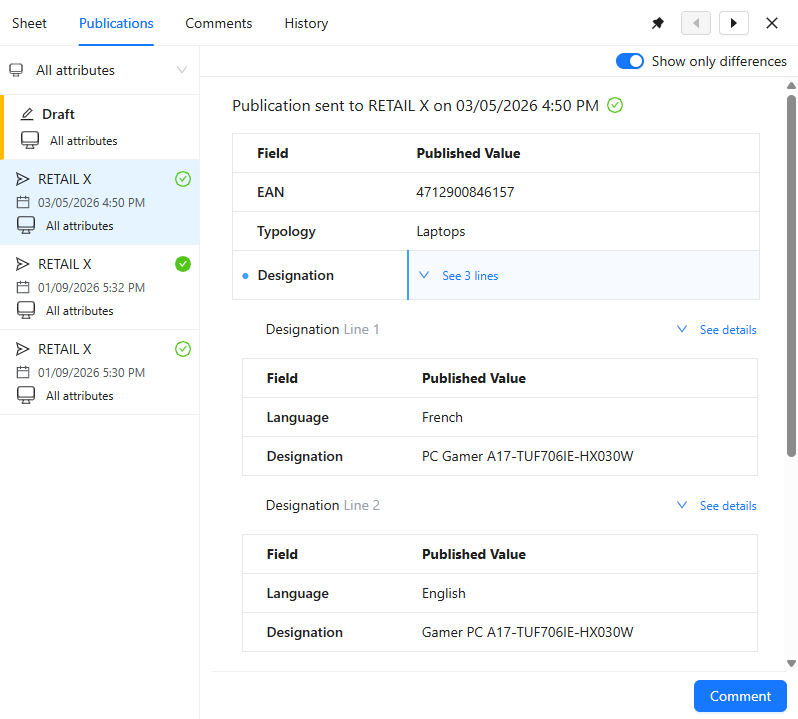
You can consult the draft of your next publication to check the data quality you will publish to your partner.
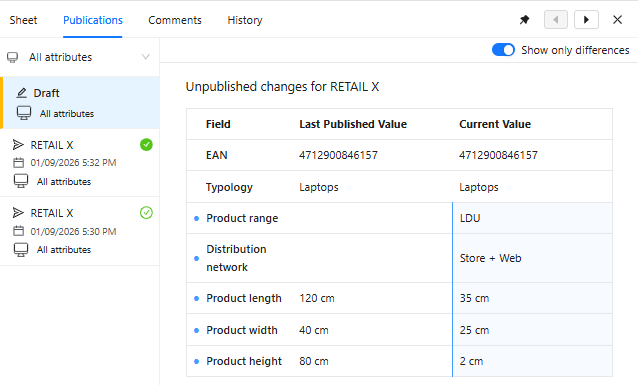
There you can see by default all updated values compare to previous publication (if any). You can also choose to see all item values to check previous published values. The current item values are automatically updated when you update your product values enabling you to get an accurate view on what will be published.
You can also see per screen what values would be published simplifying your controls before multiple publications.
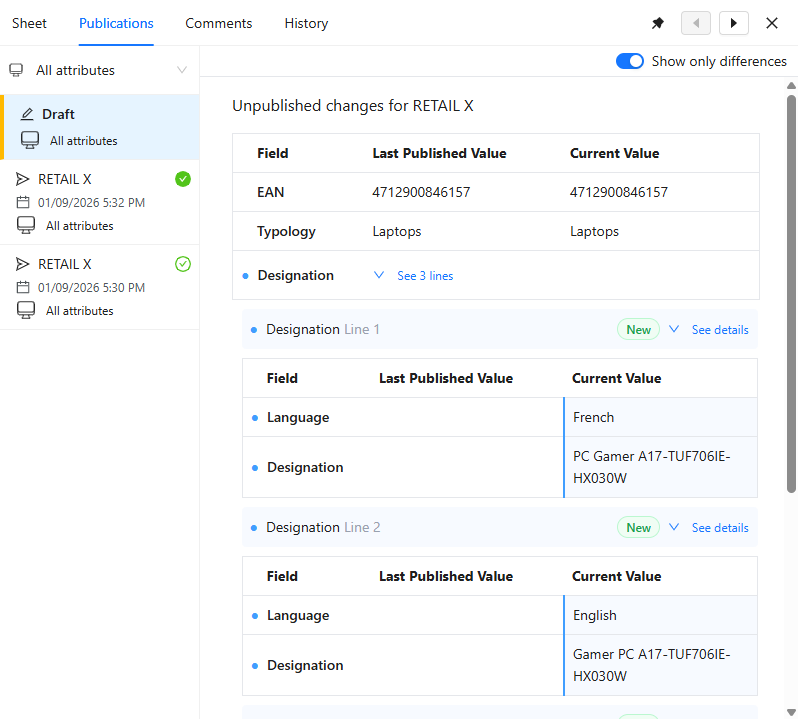
You can also consult the updated values on composite fields that will be published with your next publication. There you can dig down each line of your composite fields.
Publish product
Once the fields are completed for the products you wish to publish to your retailer.
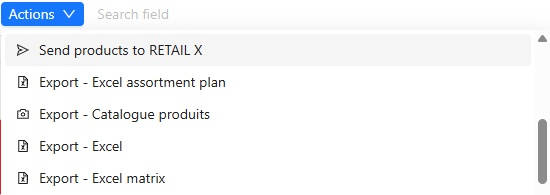
- Select the products
- Click the Action button
- Click on Send products to RETAIL X
- Click Run
A window will open and indicate you the level of progression of the job.
TIP
If you wish to, you can let it run itself in the background, by selecting Continue in background. If so you may check the job progress by selecting the button in the top right corner.
Publication status
The left column allows you to track the publication status of your products:
| Status | Description |
|---|---|
 | The product has never been published |
 | The product has been published and you have not changed any data since |
 | The product has been published and you have edited some data since |
 | The product publication failed, and you have edited some data since |
By putting the mouse pointer on the arrow you can see the date and time of your product latest publication.
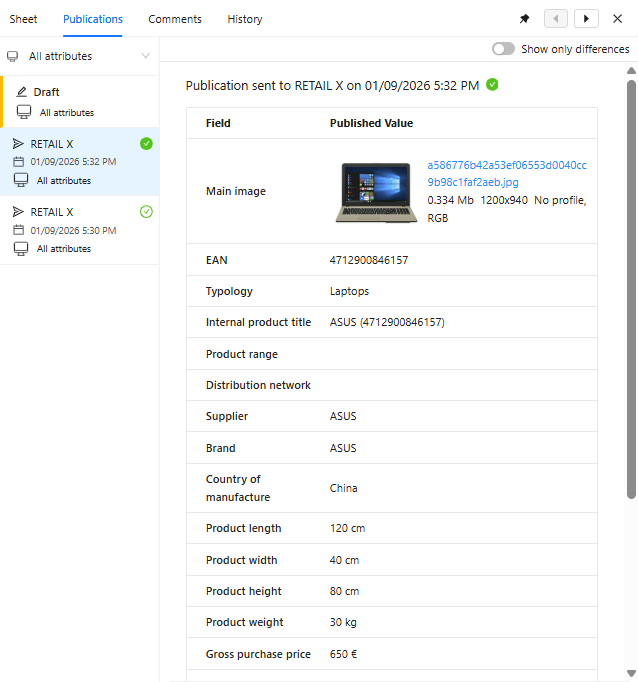
By clicking on the arrow you can see the detail of all your product publications and choose to see them per screen or all of them at once.
 | 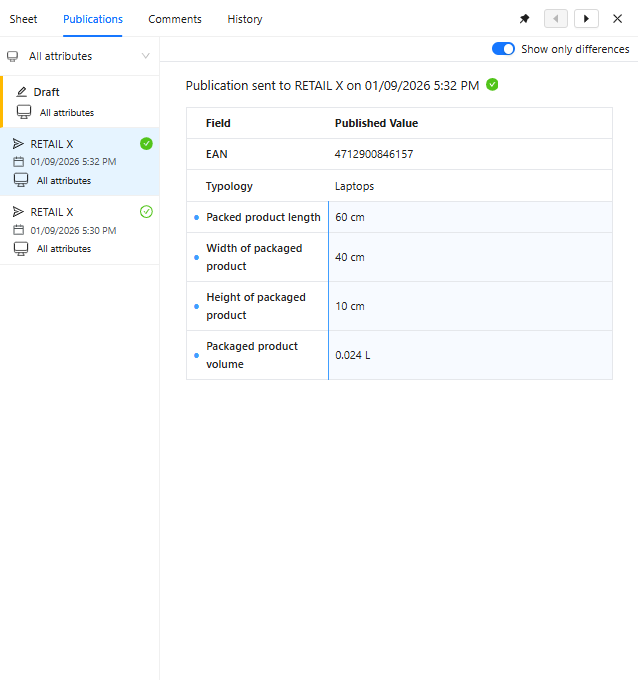 |
|---|
You can also consult the published composite field values. There you can dig down each line of your composite fields.